

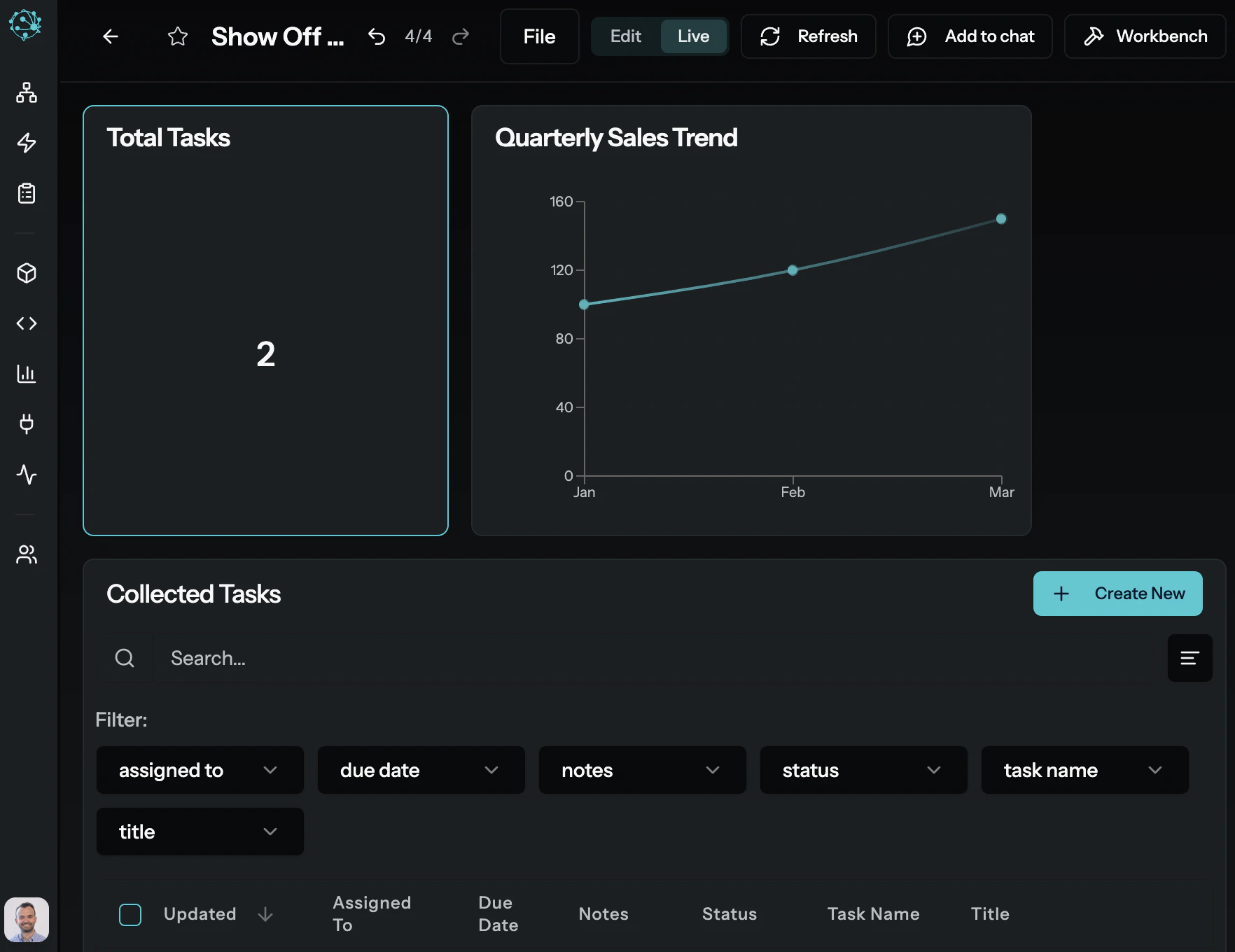
How MyAi Delivers Value for Your Day-to-Day
Access Instant Insights
View Dashboards & Reports: Quickly access interactive dashboards and reports tailored to your role (e.g., Sales Performance, Project Status, Customer Feedback). These canvases provide a clear, real-time picture of key information without requiring you to build anything.Interact with Information: Canvases aren’t just static reports. Click on data points, filter views, or enter specific parameters to drill down into the details relevant to your current task.Example: Opening a “Daily Sales Briefing” canvas to see today’s revenue figures, top-performing products, and any urgent customer issues.
Execute Workflows & Automate
Trigger Actions with a Click: Many common business processes are automated as “Workflows” in MyAi. You might see a button on a canvas or receive a prompt in chat that says, “Approve Expense Report” or “Generate Weekly Report.” With a simple interaction, MyAi takes care of the complex steps.Delegate Tasks to AI: Instead of manual processes, you can often delegate tasks to MyAi directly through chat. For example, “Summarize last week’s project updates,” or “Find all pending customer service tickets related to shipping delays.”Example: Initiating a “New Client Onboarding” workflow directly from a CRM canvas, which then automatically sends welcome emails, creates project folders, and assigns initial tasks.
Engage in Chat Sessions
Get Quick Answers: Use the chat interface as your intelligent assistant. Ask natural language questions like, “What is our current inventory level for Product X?” or “Who is the account manager for Acme Corp?”Receive Contextual Information: MyAi can pull relevant data and insights from various sources and present it to you directly in the chat, helping you make informed decisions on the fly.Guided Task Completion: For more complex tasks, MyAi can guide you step-by-step, collecting necessary information and executing the required actions, ensuring accuracy and compliance.Example: Chatting with MyAi to pull up a customer’s recent order history, then asking it to draft a follow-up email based on their purchase.
Interact with External Tools
MyAi can connect to the other business applications you already use (like CRM, ERP, project management tools).This means you often won’t need to switch between systems; MyAi can fetch or update information there directly based on your instructions.
Getting Started as an End User
Log in and explore your Dimensions
Your admin will have set up one or more Dimensions for your team. Open the Perspective view to see which workspaces are available to you — each one is scoped to a specific area of your business.
Open a Canvas
Navigate to a Canvas within your Dimension — this could be a dashboard, a report, or a data entry form. Canvases are living documents that update with real data.
Ask a question in chat
Open the chat panel and ask a natural language question relevant to your Dimension. For example: “What’s the status of my open action items?” or “Show me this month’s revenue by region.”
Your role in MyAi is to leverage its intelligence to simplify your work, accelerate decisions, and drive tangible business results. Focus on what you need to achieve, and MyAi will help you execute.